File Download Tracking: Measuring Which Assets Get Used
Whitepapers, price lists, spec sheets, sample files — most sites publish downloadable assets and then have no idea which of them anyone opens. The file sits behind a link, someone clicks it, the browser hands them a PDF, and nothing in your reports records that it happened. File download tracking turns that click into an event you can count, segment and act on.
I treat downloads the same way I treat outbound clicks: they are the last thing a visitor does before your measurement goes quiet, and on content-led sites they are frequently the closest thing to a conversion you have. The good news is that GA4 does much of this for free — and the failure cases are predictable enough to check in an afternoon.
What GA4 Already Tracks
Enhanced measurement includes a file downloads option, switched on by default in most properties. When it is active, GA4 fires a file_download event whenever someone clicks a link whose target ends in a recognised extension.
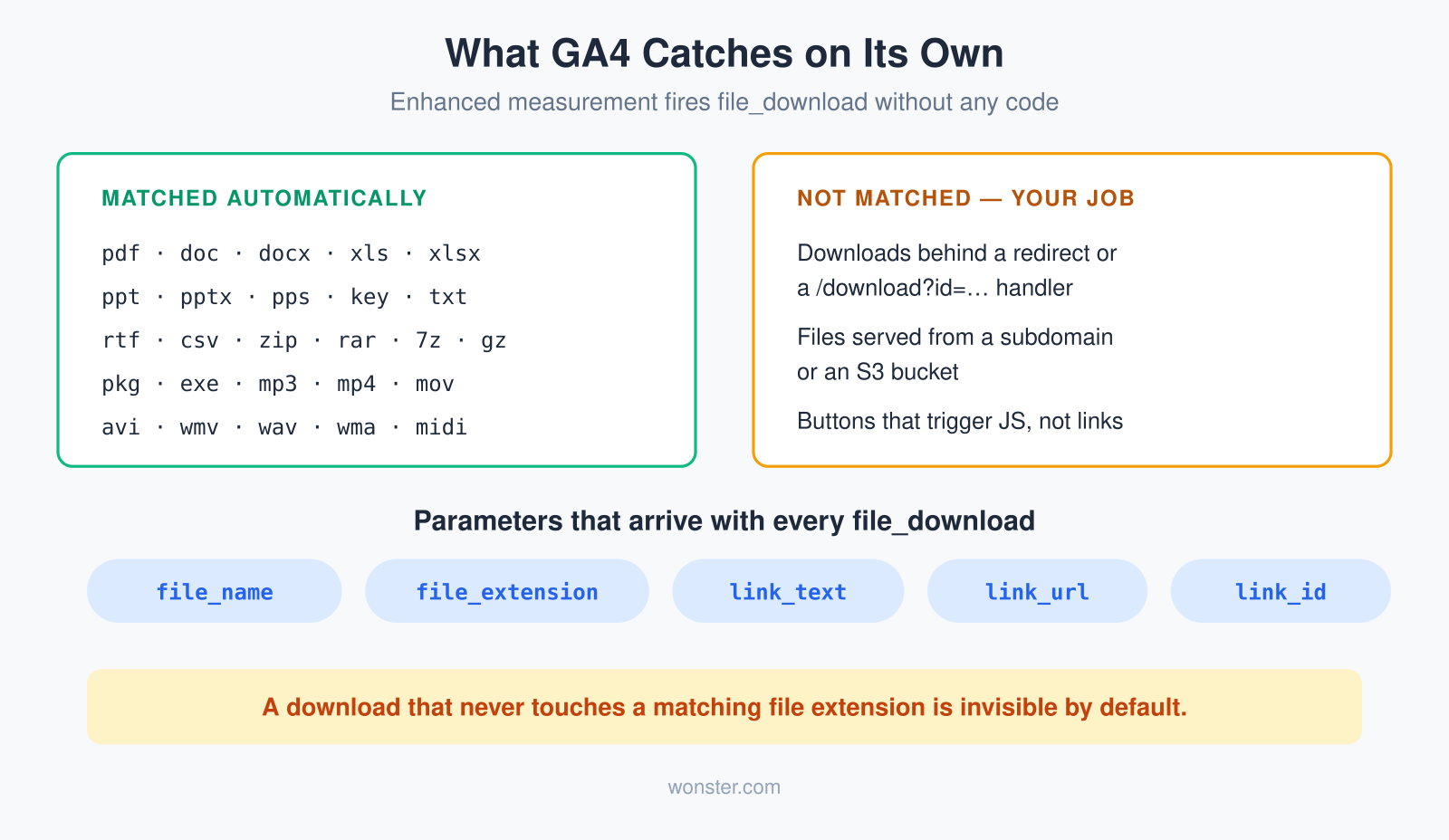
According to Google’s documentation, the match runs against a fixed pattern covering documents, spreadsheets, presentations, text, archives, executables, audio and video: pdf, doc/docx, xls/xlsx, ppt/pptx/pps, key, txt, rtf, csv, zip, rar, 7z, gz, pkg, exe, and the common media types.
Each event arrives with useful parameters already attached — file_name, file_extension, link_text, link_url, link_id and link_classes. That is enough to answer “which files get downloaded and from which links” without writing a line of code, which is why the first step is always to check whether the setting is on rather than to start building.
Where the Automatic Version Goes Blind
The matching happens on the visible link target, and that assumption breaks in three common setups.
The first is a download handler. Plenty of sites serve files through a script — /download?id=482 or /get-file/whitepaper — usually to gate the asset, count it server-side, or keep the storage path private. There is no extension in that URL, so enhanced measurement never fires.
The second is a button that is not a link. If the download starts from a JavaScript click handler rather than an anchor tag, there is nothing for GA4 to inspect. This is common in single-page apps and in “generate your report” flows where the file is produced on the fly.
The third is subtler: files hosted somewhere else entirely, on a CDN subdomain or an object store. Those links do carry the extension, so the event fires — but they are also outbound links to another host, which means the two event types overlap and the same click can be counted twice if you have also built custom outbound tracking. Worth knowing before you go hunting for a discrepancy.
Filling the Gaps With Your Own Event
Where the automatic version cannot see the click, send file_download yourself with the same parameter names. Reusing the standard names matters — it keeps everything in one report instead of splitting your downloads across two differently-shaped events.
gtag('event', 'file_download', {
  file_name: '2026-price-list.pdf',
  file_extension: 'pdf',
  link_text: 'Download the price list',
  link_url: 'https://example.com/download?id=482'
});
In Google Tag Manager the same thing is a GA4 event tag on a click trigger, with the fields populated from data layer variables or from the click element itself. If you are building it there, the custom event tracking approach applies unchanged — the only discipline is matching GA4’s own parameter names rather than inventing fileName or download_file.
One caveat on gated assets: if the download only happens after a form, you now have two events describing one intent — a form submission and a download. Decide which one you count as the conversion before you build reports on either, or you will double-count the same lead. I usually keep the form as the conversion and the download as the confirmation that the file was actually delivered.
Making the Data Answer Something
Counting downloads is easy. Making the number useful takes one more decision: which downloads represent real intent.
A price list and a blog post’s sample CSV are not the same signal. Group your assets — commercial, technical, marketing — using a consistent naming convention on the files themselves, so file_name alone tells you the category. Renaming final-v3.pdf to pricing-2026-enterprise.pdf does more for your reporting than any amount of custom dimension work.
Then mark only the assets that matter as key events. A commercial download deserves it. A logo pack does not, and marking everything as a key event turns the whole report into noise — the same trap that catches teams doing micro-conversion tracking for the first time.
Where downloads are genuinely a revenue signal, the number worth watching is not the raw count but downloads per session on the pages that host them. A whitepaper that converts a tenth of its page’s visitors is doing real work; the same file downloaded twice as often from ten times the traffic is not.
Check It This Week
Open Admin, find enhanced measurement on your web data stream, and confirm file downloads is enabled. Then click one of your own PDFs with DebugView open and watch the event arrive with its parameters filled in.
After that, list every downloadable asset you publish and check each one against the extension pattern. The ones served through a handler or a button are your build list — and in my experience that list is short, but it usually contains the single most commercially interesting file on the site.