Conversion Tracking: The Complete Guide for Marketers
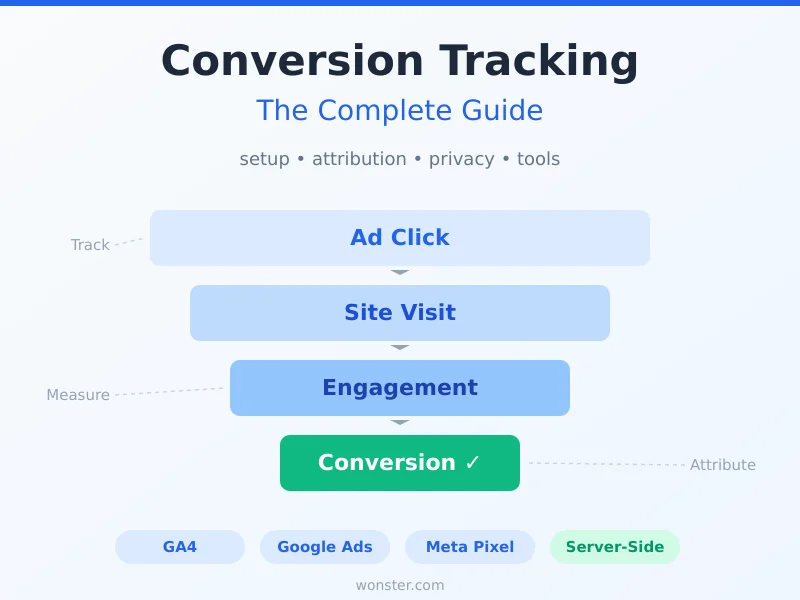
You’re spending money on ads, optimizing landing pages, and driving traffic — but do you actually know which efforts lead to revenue? Without proper conversion tracking, you’re essentially making decisions in the dark.
This conversion tracking guide covers everything from basic setup to advanced attribution, with practical walkthroughs for GA4, Google Ads, and Meta. Whether you’re tracking purchases, form submissions, or newsletter signups, you’ll have a working setup by the end of this guide.
What Is Conversion Tracking?
Conversion tracking is the process of measuring specific actions users take on your website or app that matter to your business. These actions — called conversions — could be purchases, form submissions, signups, downloads, or any other meaningful interaction.
At its core, conversion tracking answers a simple question: what’s actually working?
When someone clicks your Google ad, lands on your site, and buys something three days later — conversion tracking connects those dots. It tells you which campaign, keyword, and ad creative drove that sale. Without it, you’re attributing revenue to gut feelings instead of data.
Here’s what this looks like in practice. A visitor arrives through a Facebook ad. They browse a few pages, leave, come back through an organic search the next day, and finally submit a demo request. Conversion tracking records that demo request and traces it back through the entire journey — giving you the data to decide where to invest your budget.
Why Conversion Tracking Matters More Than Ever
The days of “just drive traffic and hope for the best” are over. Here’s why proper conversion tracking has become essential:
Ad platforms need conversion data to optimize. Google Ads and Meta both use machine learning to optimize campaigns. But these algorithms are only as good as the data you feed them. Without accurate conversion signals, their automated bidding strategies — Smart Bidding, Advantage+ — are optimizing blind.
Marketing budgets face more scrutiny. When budgets tighten, the first question leadership asks is “what’s the ROI?” If you can’t show exactly which channels drive conversions, your budget is at risk.
The customer journey is more fragmented. People switch between devices, browsers, and channels before converting. A single-touch, last-click view of the world misses most of the story.
Privacy changes are eating your data. Ad blockers, iOS privacy updates, and cookie restrictions mean client-side tracking now misses 30-40% of actual conversions. If you’re not adapting, you’re making decisions on incomplete data. My guide to privacy-first analytics covers how to get accurate data without invasive tracking.
Types of Conversions: Macro vs. Micro
Not all conversions are created equal. Understanding the difference between macro and micro conversions helps you build a complete picture of your funnel. For a deep dive into building and optimizing funnels, see my complete funnel analysis guide.
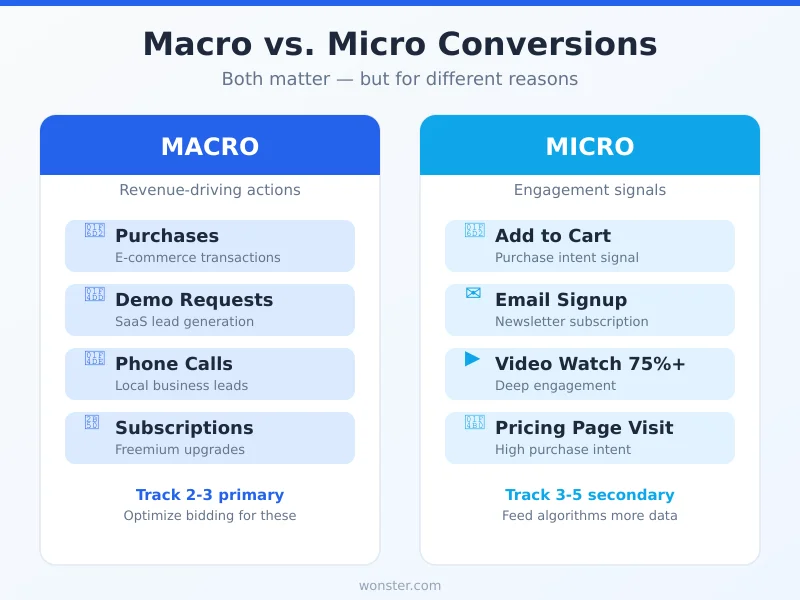
Macro Conversions
These are the big wins — the primary actions directly tied to revenue:
- Purchases (e-commerce)
- Demo requests or free trial signups (SaaS)
- Contact form submissions (B2B services)
- Phone calls from ads (local businesses)
- Subscription upgrades (freemium products)
Macro conversions are what you ultimately optimize for. They’re your north star metrics.
Micro Conversions
Tracking these smaller interactions requires custom event tracking — setting up specific triggers for each action you want to measure.
These are smaller steps that indicate engagement and purchase intent:
- Add to cart or add to wishlist
- Email newsletter signup
- Video watched to 75%+
- PDF or resource download
- Product page viewed for 30+ seconds
- Pricing page visit
Here’s why micro conversions matter: they give conversion algorithms more data to work with. If you only track purchases, and you get 10 purchases a month, that’s not enough signal for Google’s Smart Bidding to learn effectively. But if you also track add-to-carts and pricing page views, you give the algorithm hundreds more data points to optimize against.
My recommendation: track 2-3 macro conversions and 3-5 micro conversions. More than that creates noise. Less than that leaves gaps.
How Conversion Tracking Works Under the Hood
Understanding the mechanics helps you troubleshoot issues and make better decisions about your setup.
Client-Side Tracking (The Traditional Way)
This is the classic approach: you place a tracking pixel (a small JavaScript snippet) on your website. When a user completes a conversion, the pixel fires and sends data back to the ad platform or analytics tool.
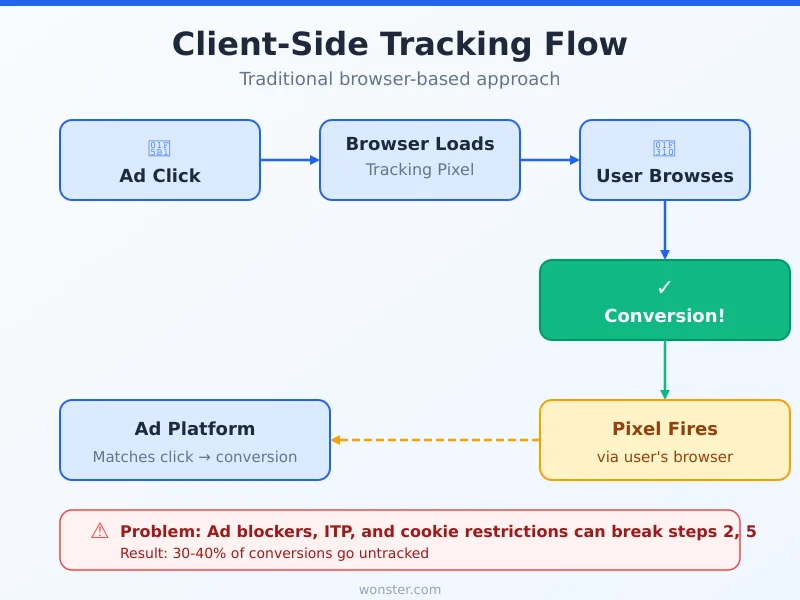
The flow looks like this:
- User clicks an ad → lands on your site
- The tracking pixel loads in the user’s browser
- User completes a conversion (purchase, form submit)
- Pixel fires → sends event data to the ad platform
- Platform matches the event to the original ad click
The problem? This entire chain depends on the user’s browser. Ad blockers, iOS Intelligent Tracking Prevention (ITP), and cookie restrictions can break it at any step. That’s why client-side tracking alone is no longer reliable.
Server-Side Tracking (The Modern Approach)
For a complete walkthrough of this approach, check out my guide on server-side conversion tracking and recovering lost attribution data.
Server-side tracking bypasses the browser entirely. Instead of relying on a JavaScript pixel, your server sends conversion data directly to the ad platform’s API.
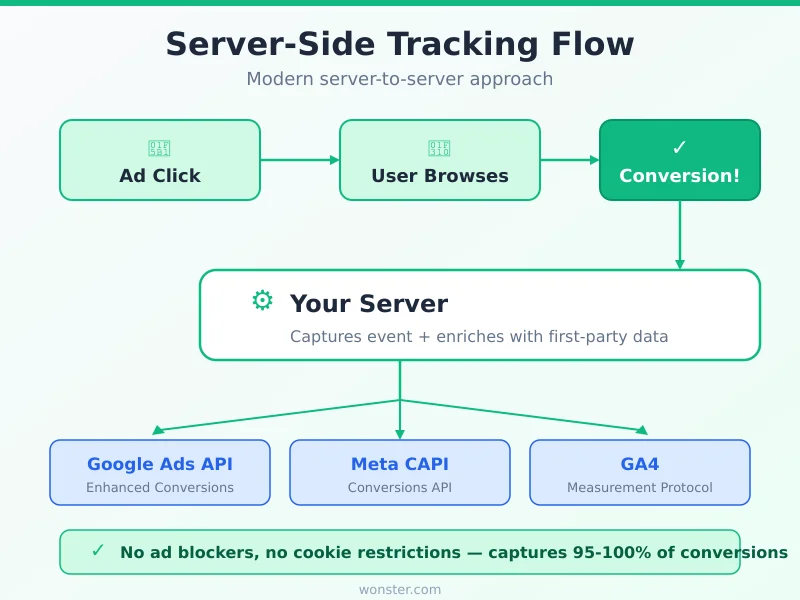
The flow:
- User clicks an ad → lands on your site
- User completes a conversion
- Your server captures the event
- Server sends data directly to the platform’s API (Google Ads API, Meta Conversions API)
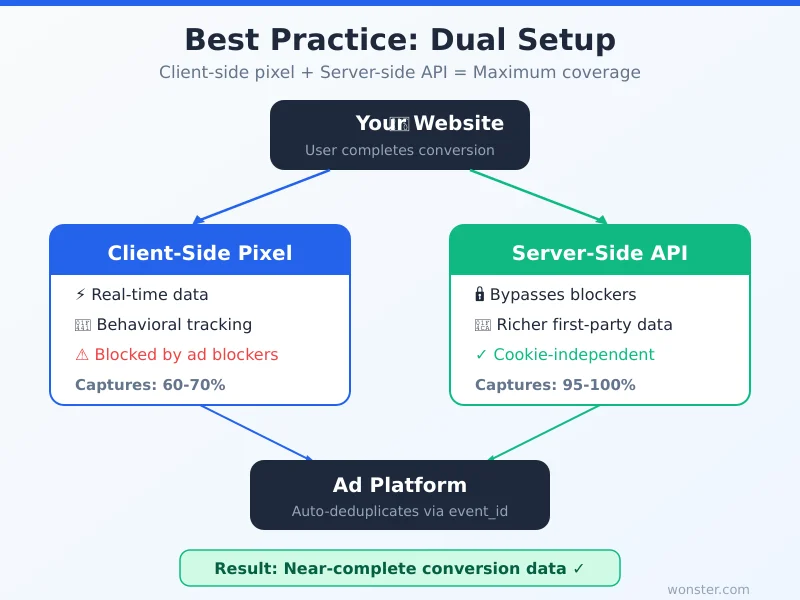
Because this happens server-to-server, ad blockers and browser restrictions don’t affect it. Server-side tracking typically captures 95-100% of conversions, compared to 60-70% for client-side alone.
The Best Practice: Dual Setup
In 2026, the recommended approach is a dual setup: client-side pixel + server-side API. The pixel provides real-time data, while the server-side layer ensures nothing gets lost. Platforms like Google and Meta automatically deduplicate events so you don’t double-count.
Setting Up Conversion Tracking: Step-by-Step
Let me walk you through the three most common setups.
Google Analytics 4 (GA4)
GA4 uses an event-based model where any event can be marked as a conversion (called a “key event” in GA4’s interface).
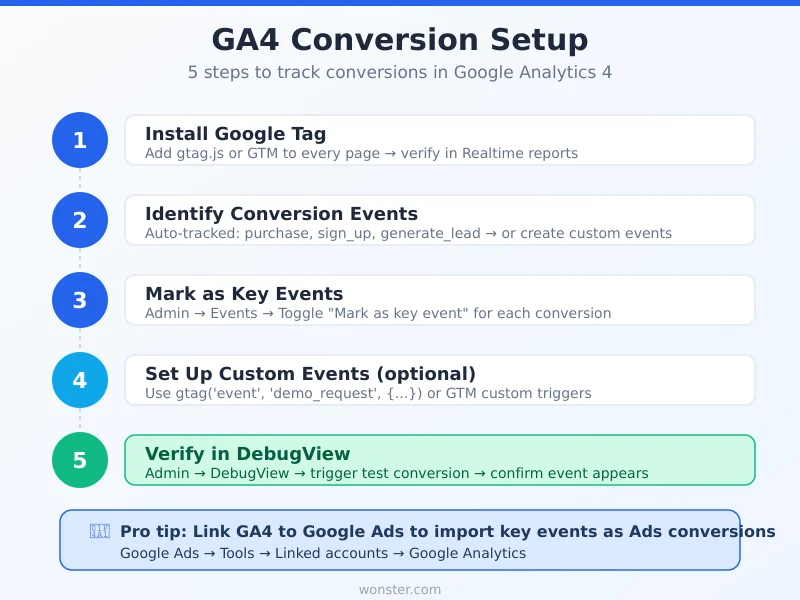
Step 1: Make sure your GA4 tag is installed. You need the Google tag (gtag.js) or Google Tag Manager (GTM) on every page. Verify by checking Realtime reports in GA4 — you should see active users.
Step 2: Identify your conversion events. GA4 automatically tracks some events like purchase, sign_up, and generate_lead. For custom actions, you’ll create custom events.
Step 3: Mark events as key events. Go to Admin → Events → find the event → toggle “Mark as key event.” That’s it — GA4 is now counting it as a conversion.
Step 4: For custom events, use GTM or gtag.js:
gtag('event', 'demo_request', {
  event_category: 'engagement',
  event_label: 'pricing_page'
});
Step 5: Verify. Check GA4’s Realtime reports and DebugView to confirm events are firing.
Google Ads
Step 1: Create a conversion action. In Google Ads, go to Goals → Conversions → New conversion action. Choose “Website” and define the action (purchase, lead, signup).
Step 2: Set conversion value and counting. For e-commerce, use dynamic values. For leads, set a static value (e.g., $50 per lead). Choose “Every” for purchases, “One” for leads.
Step 3: Install the tag. Google Ads gives you two options: the Google tag (gtag.js) or Google Tag Manager. With GTM, create a “Google Ads Conversion Tracking” tag and trigger it on your thank-you page or form submission event.
Step 4: Enable Enhanced Conversions. This uses first-party data (hashed email addresses) to improve attribution accuracy. In your conversion action settings, turn on Enhanced Conversions and implement the additional code or GTM configuration.
Step 5: Link GA4 to Google Ads. This lets you import GA4 key events as Google Ads conversions — useful if you prefer managing events in GA4. Go to Google Ads → Tools → Linked accounts → Google Analytics.
Meta (Facebook) Pixel + Conversions API
Step 1: Install the Meta Pixel. Add the base pixel code to your site header. Use Meta Events Manager to verify it’s working.
Step 2: Set up standard events. Meta supports standard events like Purchase, Lead, AddToCart, CompleteRegistration. Implement them on the relevant pages:
fbq('track', 'Lead', {
  content_name: 'Demo Request',
  content_category: 'SaaS'
});
Step 3: Implement the Conversions API (CAPI). This is the server-side layer. You can set it up through a partner integration (Shopify, WordPress plugins) or directly via Meta’s API. CAPI sends the same events server-to-server, ensuring they’re captured even when the pixel is blocked.
Step 4: Set up Event Match Quality. In Events Manager, check your Event Match Quality score. Aim for “Good” or “Great” by passing additional parameters like email, phone, and external ID.
Step 5: Enable deduplication. Use the event_id parameter in both pixel and CAPI events to prevent double-counting.
Attribution Models: Which One Should You Use?
Attribution determines which touchpoint gets credit for a conversion. Choosing the wrong model can lead to cutting campaigns that are actually driving results.
The Main Models
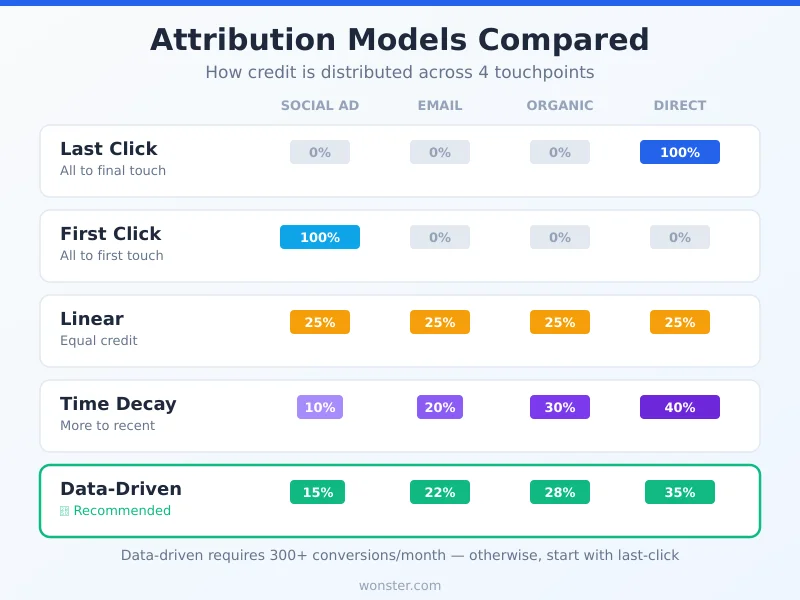
| Model | How It Works | Best For |
|---|---|---|
| Last Click | All credit to the final touchpoint | Simple funnels, direct response |
| First Click | All credit to the first touchpoint | Brand awareness campaigns |
| Linear | Equal credit across all touchpoints | Understanding the full journey |
| Time Decay | More credit to recent touchpoints | Longer sales cycles |
| Data-Driven | AI distributes credit based on patterns | Accounts with sufficient data |
My Take on Attribution
For most businesses, data-driven attribution is the best choice in 2026. Google Ads has made it the default, and it genuinely works well — as long as you have enough conversion volume (at least 300 conversions and 3,000 ad interactions in 30 days).
If you don’t have enough volume, last-click is the safest starting point. It’s straightforward and easy to act on, even if it undervalues upper-funnel channels.
The biggest attribution mistake I see? Switching models and then comparing performance to the old model. When you change attribution, historical numbers shift. Compare apples to apples.
The Privacy Problem: Tracking in 2026
If you set up conversion tracking two years ago and haven’t touched it since, you’re likely missing a significant chunk of data. Here’s what changed:
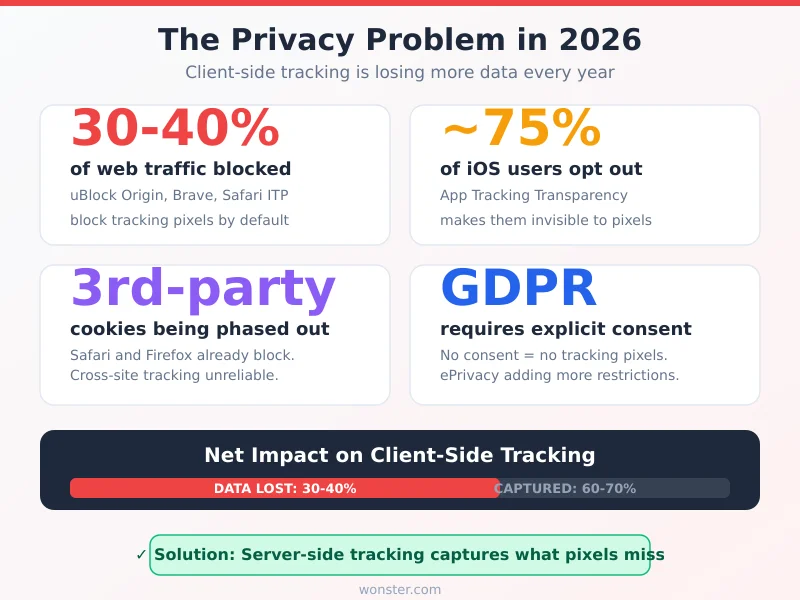
Ad blockers now affect 30-40% of web traffic. Popular blockers like uBlock Origin, Brave, and Safari’s built-in protections block tracking pixels by default. That’s not fringe usage — it’s mainstream.
iOS App Tracking Transparency continues to limit Meta and other platforms. Users who opt out of tracking (~75% of iOS users) become invisible to client-side pixels.
Third-party cookies are being phased out. While Google’s timeline has shifted, Safari and Firefox already block them. Cross-site tracking via cookies is increasingly unreliable.
The EU’s evolving regulations (GDPR, ePrivacy) require explicit consent for most tracking technologies. Without consent, you legally can’t fire tracking pixels for many users.
The net result? Relying solely on client-side tracking gives you an incomplete, biased picture of your marketing performance. You’re likely overvaluing channels that reach younger, tech-savvy audiences (who use more ad blockers) and undervaluing channels that reach older demographics.
Server-Side Tracking: The Modern Solution
Server-side tracking isn’t optional anymore — it’s essential for accurate conversion data. Here’s how to approach it.
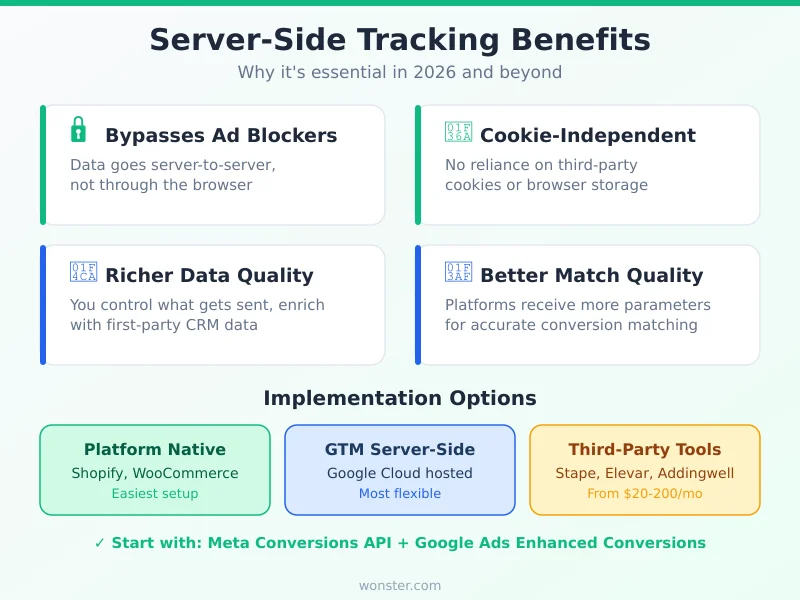
What It Solves
- Bypasses ad blockers — data goes server-to-server, not through the browser
- Not affected by ITP or cookie restrictions — no reliance on third-party cookies
- Better data quality — you control what gets sent, with richer first-party data
- Improved Event Match Quality — platforms receive more parameters for matching
Implementation Options
Option 1: Platform-native integrations. Shopify, WooCommerce, and major CMS platforms offer built-in Conversions API integrations. These are the easiest path — often just toggle a setting and authenticate.
Option 2: Google Tag Manager Server-Side. GTM offers a server-side container that runs on Google Cloud. It acts as a middleman between your site and ad platforms. Setup requires technical knowledge but provides maximum flexibility.
Option 3: Third-party tools. Services like Stape, Elevar, and Addingwell provide managed server-side tracking infrastructure. They simplify the process but add a monthly cost ($50-200+/month depending on volume).
What You Should Do
At minimum, implement Meta Conversions API and Google Ads Enhanced Conversions. These two cover the majority of paid advertising and are the most impactful upgrades you can make to your tracking accuracy.
Conversion Tracking Tools Compared
Here’s how the major tools stack up for conversion tracking specifically:
| Tool | Type | Best For | Pricing | Server-Side |
|---|---|---|---|---|
| Google Analytics 4 | Web analytics | Overall measurement | Free | Via GTM SS |
| Google Ads | Ad platform | Google campaign optimization | Free (with ads) | Enhanced Conversions |
| Meta Events Manager | Ad platform | Facebook/Instagram ads | Free (with ads) | Conversions API |
| Google Tag Manager | Tag management | Managing all tracking tags | Free | Server container available |
| Matomo | Web analytics | Privacy-first tracking | Free (self-hosted) | Yes |
| Mixpanel | Product analytics | SaaS, product-led growth | Free tier available | Yes |
| Segment | Customer data platform | Multi-tool data routing | From $120/mo | Yes |
| Stape | Server-side platform | Server-side GTM hosting | From $20/mo | Core feature |
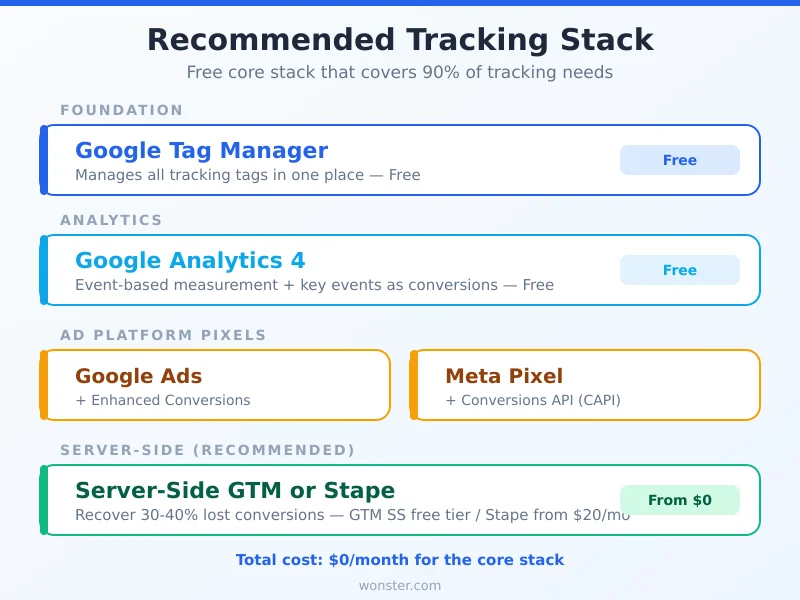
For most marketers, the core stack is: GA4 + Google Tag Manager + platform-specific pixels (Google Ads, Meta). This combination is free, well-documented, and covers 90% of tracking needs.
If privacy compliance is a priority, consider pairing this with a privacy-first analytics alternative like Matomo that gives you full data ownership.
7 Common Conversion Tracking Mistakes
I’ve audited hundreds of tracking setups over the years. These are the issues I see most often:
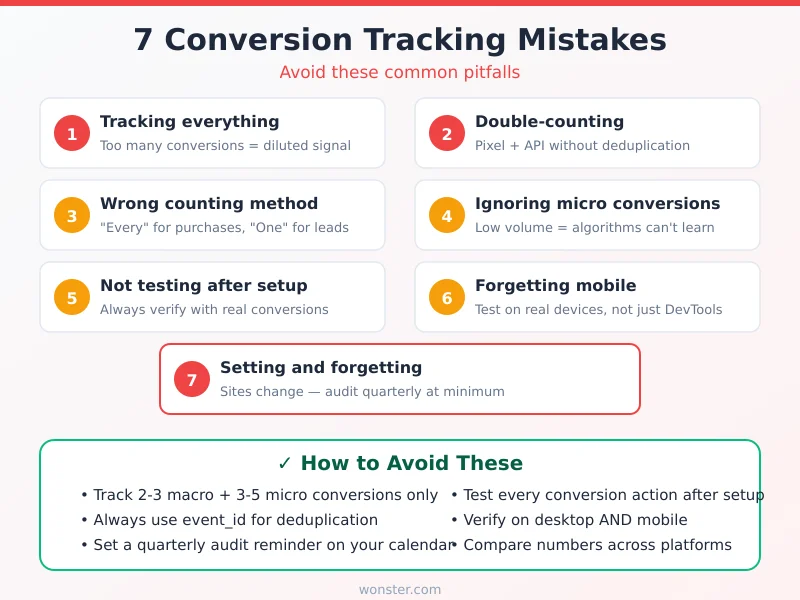
1. Tracking everything as a conversion. When you mark 15 different actions as conversions, you dilute the signal. Smart Bidding can’t optimize for everything simultaneously. Pick 2-3 primary conversions and stick with them.
2. Double-counting conversions. This happens when both your pixel and Conversions API fire without proper deduplication. Always use event_id or transaction_id parameters to prevent it.
3. Using the wrong counting method. In Google Ads, “Every” counts each conversion (right for purchases — one user can buy multiple times). “One” counts one conversion per click (right for leads — you don’t want to count the same person submitting a form twice).
4. Ignoring micro conversions. If you only track final-step conversions and get low volume, your bidding algorithms won’t have enough data to optimize. Track meaningful mid-funnel actions too.
5. Not testing after implementation. Too many marketers set up tracking and assume it works. Test every single conversion action with real clicks and real submissions. Check that the data matches across platforms.
6. Forgetting mobile. Your tracking must work consistently across desktop and mobile. Test on actual devices — not just browser DevTools.
7. Setting and forgetting. Websites change. New forms get added. Landing pages get redesigned. Set a quarterly calendar reminder to audit your conversion tracking setup.
How to Verify Your Setup Is Working
After implementation, always verify before trusting the data.
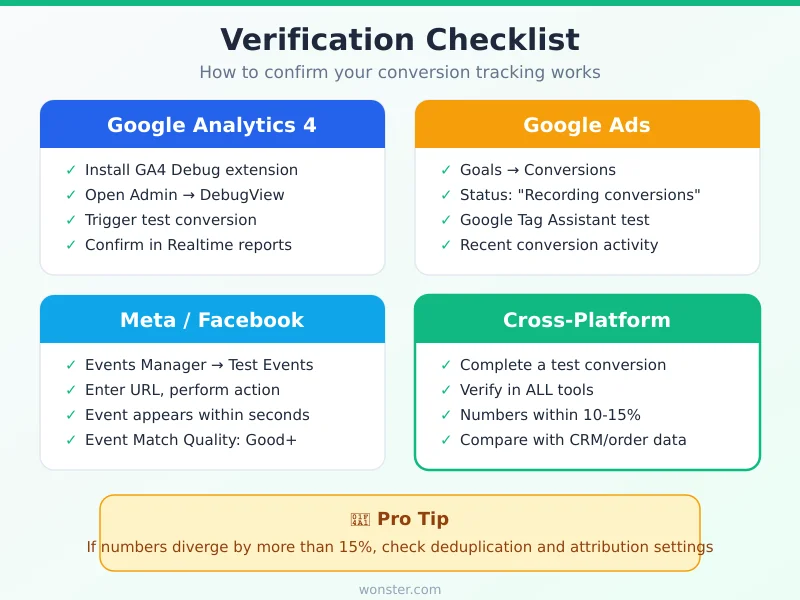
Google Analytics 4: Use DebugView (Admin → DebugView) with the GA4 Debug extension installed. Trigger a test conversion and watch it appear in real time.
Google Ads: Check the conversion action status in Goals → Conversions. It should show “Recording conversions” with recent activity. Use Google Tag Assistant to debug tag firing.
Meta: Open Events Manager → Test Events. Enter your website URL and perform the conversion action. The event should appear within seconds.
Cross-platform check: Complete a test conversion and verify the same action appears in all tools — GA4, Google Ads, Meta — with consistent data. If numbers diverge by more than 10-15%, investigate your deduplication and attribution settings.
FAQ
What is conversion tracking in simple terms?
Conversion tracking is a way to measure when someone takes a valuable action on your website — like making a purchase, filling out a form, or signing up for a trial — and connecting that action back to the marketing channel that drove it.
How many conversions should I track?
Focus on 2-3 primary (macro) conversions and 3-5 secondary (micro) conversions. More than that dilutes your signal and makes optimization harder.
Is Google Analytics enough for conversion tracking?
GA4 is excellent for measurement and analysis, but it doesn’t directly optimize your ad campaigns. You still need platform-specific conversion tracking (Google Ads, Meta) for their bidding algorithms to work effectively.
How do I track conversions without cookies?
Server-side tracking (Conversions APIs) sends data server-to-server, bypassing cookie restrictions. First-party data matching (hashed emails, phone numbers) is another approach. Privacy-first analytics tools like Matomo and Plausible use cookieless tracking methods.
What’s the difference between a conversion pixel and a Conversions API?
A pixel is JavaScript that runs in the user’s browser — it’s fast but vulnerable to ad blockers. A Conversions API sends data from your server to the ad platform’s server — it’s more reliable but requires more setup. Use both together for the best results.
How do I know if my conversion tracking is accurate?
Compare conversion counts across platforms. If your Google Ads, GA4, and Meta numbers are within 10-15% of each other and of your actual CRM/order data, you’re in good shape. Larger discrepancies indicate setup issues.
Should I use data-driven attribution?
If you have enough conversion volume (300+ conversions/month in Google Ads), yes. Data-driven attribution uses AI to distribute credit more accurately than rule-based models. If you have low volume, start with last-click.
How often should I audit my conversion tracking?
At minimum, quarterly. Also audit after any website redesign, new landing page launch, CMS update, or when conversion numbers suddenly change without an obvious reason.
What’s Next
Proper conversion tracking is the foundation of data-driven marketing. Without it, every optimization decision is a guess. With it, you can confidently allocate budget to what works and cut what doesn’t.
If you’ve just set up your tracking, give it a week to accumulate data before drawing conclusions. Then start with the basics: which channels drive the most conversions at the lowest cost?
For deeper dives into specific aspects of conversion tracking, check out these related guides:
- Custom Event Tracking: How to Set Up Events in Any Analytics Tool (coming soon)
- Server-Side Conversion Tracking: Recover Lost Attribution Data (coming soon)
- E-Commerce Conversion Tracking: From Product Views to Purchases (coming soon)
And if you’re also evaluating your analytics stack, my complete guide to Google Analytics alternatives covers privacy-first tools that can complement your conversion tracking setup.